

Download instructions for VLeBooks
General instructions
Download instructions for VLeBooks (Askews & Holts)
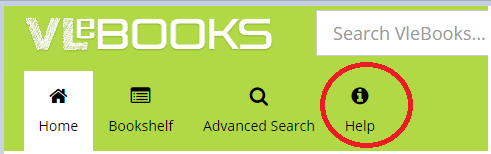
You can use the help topics on Downloading, Android or iOS that are available from the ‘Help’ option on the VLeBooks platform.
Further guidance is also available in the LibAnswers help page for downloading VLeBooks.
Downloading
To download a full book you must complete 3 steps:
1. Click the ‘Download’ icon  located in the middle of the page
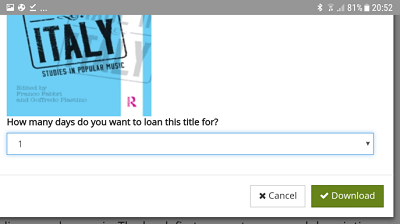
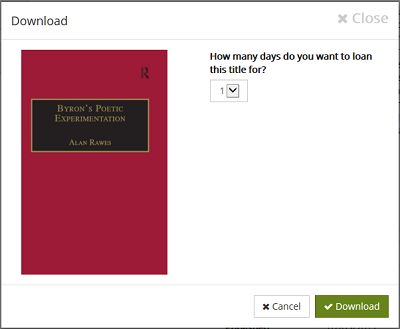
2. Select download period and click ‘Download'
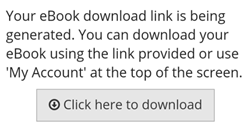
3. Click the e-book download link when it has been generated
Software required
Before you download, please ensure that you have installed and authorised the relevant software.
Different software is required for PCs, laptops / iOS /Android devices.
Instructions for PC and Laptop
For PCs and laptops
Rather than using a public computer, you should download your e-book to your own computer.
You will need to install the VLeBooks Reader app on your device. You can download the VLeBooks Reader app from: http://vlebooks.com/install. Please do not try to install the app to a public computer.
Select your title by clicking on the book icon and click on the title.
In the Book Details page, click Download, choose your loan period, and select ‘VLe app’ as the application you would like to use. Click Download.
The first time you use the Reader app, you will need to authorise it using an access code. Click Generate New Access Code, then copy the unique code on your screen.
Install the app on your offline device if you have not already done so. When you open it, you will be asked to enter an Access Code. Paste in your copied code.
Your downloaded title will display on the Home page of the App under My Loans. Clicking on the book title will take you to the Book Details page where you can opt to read the book online in the app.
You will only need to use the access code the first time you use the Reader on a new device. Subsequent downloads will generate a file or link for you to save or open in the VLeBooks Reader app.
Instructions for Android, iPad and iPhone
If you haven’t already installed the VLeBooks Reader app, you can do so via the various app stores, or you can download it from http://vlebooks.com/install . Please do not try to install this on public computers.
The first time you use the VLeBooks Reader app, you will need to enter an Access Code. To do this, you will need to be signed into VLeBooks; you can do this in the web version – including on your laptop.
Go to ‘My Account’, click Sign In to your Institution and then, once you’ve selected The University of Manchester, sign in with your usual University login.
Click ‘Generate New Access Code’. When you open the app in your device, you will be prompted to enter an Access Code - you can now enter your unique code.
Now you can search for titles in the App. Select your title by clicking on the book icon and click on the title.
In the Book Details page, click Download, choose your loan period, and then select ‘VLe App’ as the application you would like to use. Click Download.
A download link will then be generated, which will download a file, and enable you to open the book. Alternatively, you can use the ‘Read Online’ option.
You only need to generate an access code the first time you use the VLeBooks app in a new device. Subsequent downloads will provide a link to your title for you to save and read offline, or open in the app.
Once you’ve downloaded a title, clicking on the Download option will show your Return Due Date ie when your current loan expires, together with book details, and the copying limit for the book.
Adobe Digital Editions
Although VLeBooks will continue to support the option to download to Adobe Digital Editions until the end of December 2026 (at which point this option will be removed, we recommend that all our users switch to the VLeBooks app immediately.
To use Adobe Digital Editions after 23/6/26, both existing users and new users must create a new ByteBooks ID and account - full instructions are available here - as ByteBooks are now responsible for running the Adobe eBook platform.
If you wish to continue using ADE please note that, as ‘Your eBook library is linked to the email address originally used with Adobe ID …. If you no longer have access to that email, please contact support before proceeding … This service is available for a limited period until 30 Sep 2026.”
Download limits
Download limits
In most cases, you can download the whole book (for instances in which you can’t download the whole book, please see below).
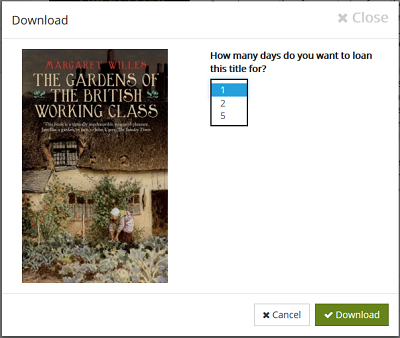
If you wish to download the whole book, the download period available will feature in the drop down options that you are given. The options available will depend upon the e-book licence associated with the book:
Credit based licence: 1,2,5 days
These licenses offer a drop down button:
3 User licence: 1 day
1 User licence: No download available
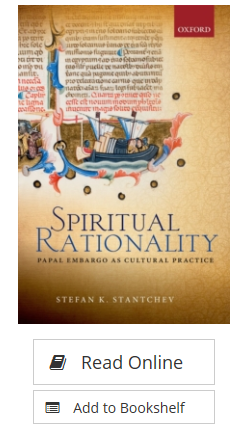
The Download is not available for 1 User Licence titles.
There is only a ‘Read Online’ button:
Other download restrictions
Users are limited to 12 items at any one time.
In instances where the Library has reached the maximum number of users allowed on a licence we are automatically informed by the e-book provider so that we can top-up access. In the interim period you can access 5 mins of Read-only content (only for items bought on a Credit based licence).