

Download instructions for Proquest Ebook Central
General instructions
Download instructions for ProQuest Ebook Central
When you select a book to read on the Ebook Central platform, sign into Ebook Central (or create an account if you don’t have one).
If you want to download an entire e-book for offline use from ProQuest’s Ebook Central platform you will need to install the Ebook Central Reader app. This app has replaced Adobe Digital Editions (ADE) which is no longer supported.
Detailed instructions are available from this ProQuest LibGuide, or see our links to LibAnswers in the Instructions for downloading guidelines.
Instructions for downloading to personal devices
These instructions cover PC and Laptop, iPad and iPhone, and Android devices:
- Once you decide you want to download a book so that you can read it offline, click the Download icon. This will either be to the right of the title or, if you have been reading online, at the bottom of the page.
- If you are on the Book Details page, the download button is located under the book's cover image.
- Sign into your Ebook Central account if you have not already done so. The following article has more information on signing in to your Ebook Central account:
- Choose your loan length from the drop-down menu, and click the Confirm button. For further information about download limits, please see the end of this page.
- If not already installed on your personal device, you will receive a message about the new ProQuest Ebook Central Reader app with a prompt to register.
- For instructions on registering your device, go to How do I log in to the Ebook Central App on my device? or see LibAnswers for guidance on How to install the EBook Central Reader app.
- Open the Ebook Central app on your device, and the My Books page will open. The book you borrowed will appear on your bookshelf but still needs to be downloaded to your device.
- Hover your mouse over the cover image and click on the Download button to download to your device.
- When the book finishes downloading, the Download button will be replaced by a Read button. Click this to open the book and start reading.
Download limits
Download limits
Please note, the new app is designed for offline reading of downloaded whole books and is a companion tool to the Ebook Central online reader. The new app is not designed for chapter downloads which are still supported by any PDF-compatible reader.
When you download the whole book, the download period available will feature in the drop-down options that you are given.
If you download the whole book, the download period available will feature in the drop-down options that you are given.
The options available will depend upon the e-book licence associated with the book and the number of copies that we own.
‘Availability’ details are usually listed towards the top of the summary screen:
Licence type Download limits
- Unlimited access licence Up to 21 days


- Credit based licence (non-linear): 1-5 days

- 3 User licence: 1-5 days
On 3 user licences, in order to reduce waiting times, only 1 user can download a title at any one time, as this then guarantees online access to at least 2 users at all times.
1 User licence: (if multiple copies owned) 1 day
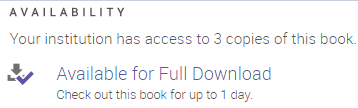
- 1 User licence: (if only 1 copy owned) No download available


Chapter download
The download chapter icon is located at the top of the page 
If you download a chapter you receive a PDF file of the chapter, page range or page selected. The PDF does not expire and will also contain a citation in the style that you have chosen.
If you download a chapter, please be aware that the corresponding number of pages will automatically be deducted from your print allocation.
Contact the Electronic Resources Helpdesk if you require further assistance.